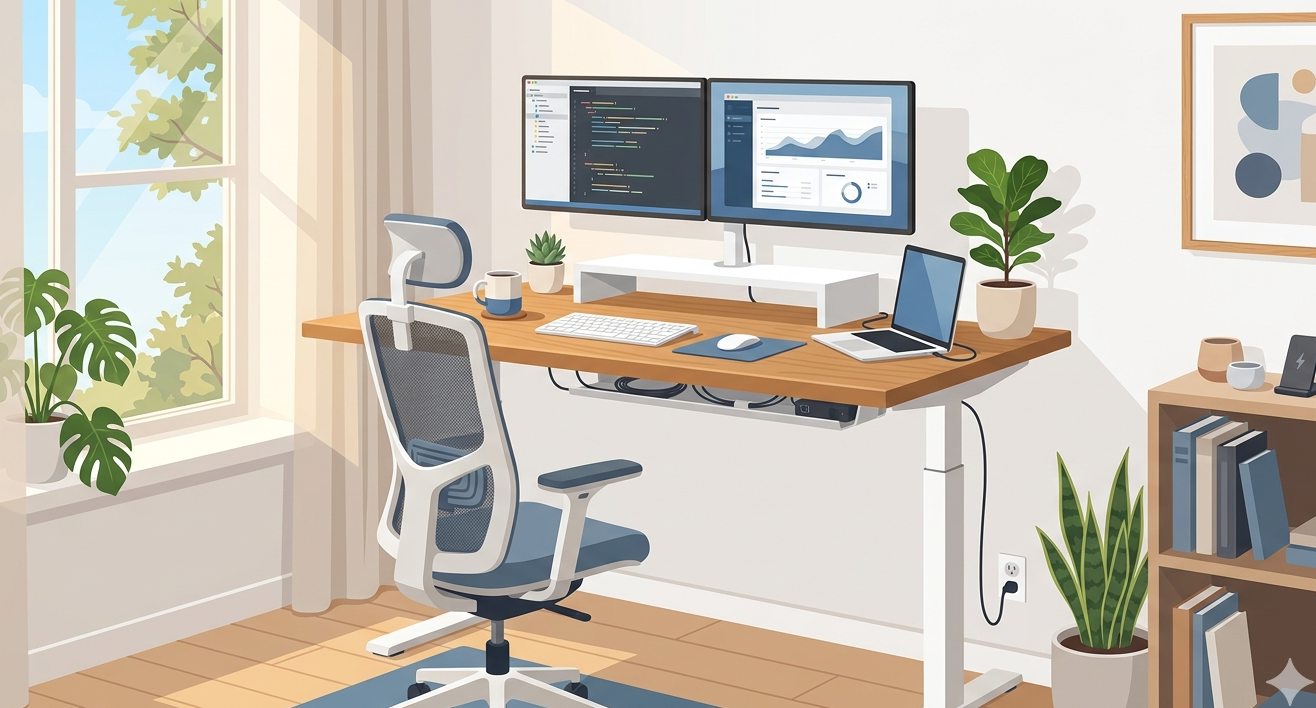
The Ultimate Home Office Setup Guide: Productivity, Ergonomics & Value
The Ultimate Home Office Setup Guide: Productivity, Ergonomics & Value
After spending 12 years in tech offices designed by facilities teams with six-figure budgets, I built my own home office from scratch — twice. Once poorly, once well. The difference in productivity, comfort, and physical health was dramatic. This guide shares everything I learned, including the mistakes that cost me months of back pain and hundreds of dollars in replacements.
Whether you are building your first home office or upgrading an existing setup, this guide covers every component in order of impact — starting with what matters most and ending with what matters least.
The Foundation: Chair and Desk
Your chair is the single most important purchase in your home office. Not your monitor, not your computer, not your keyboard. You will spend 6-10 hours per day in this chair, and the wrong one will cause problems that no amount of technology can fix — lower back pain, neck strain, hip tightness, and the general restlessness that comes from being physically uncomfortable while trying to focus.
What makes a chair ergonomic is not marketing — it is adjustability. A good ergonomic chair provides adjustable seat height (so your feet are flat on the floor with thighs parallel), adjustable lumbar support (the curve in the lower back rest should match the curve of your spine), adjustable armrests (elbows at 90 degrees, shoulders relaxed), and seat depth adjustment (2-3 fingers of space between the seat edge and the back of your knees).
At the $200-$400 range, chairs from companies like Autonomous, HON, and Staples Hyken provide genuine ergonomic adjustment without the premium pricing of Herman Miller or Steelcase. Above $400, you are paying for build quality and longevity — a Herman Miller Aeron will last 15-20 years, making its per-year cost comparable to replacing a $200 chair every 3-4 years.
Browse Ergonomic Office Chairs
Adjustable lumbar, armrests, and seat height. The foundation of a productive setup.
Desk height and type: Standard desk height is 28-30 inches, which works for most people between 5’8″ and 6’2″. If you are shorter or taller, an adjustable-height desk is important. Sit-stand desks have become affordable ($250-$500 for electric models) and offer genuine health benefits — not from standing all day, but from the ability to change positions throughout the day. Research from Cornell University found that alternating between sitting and standing every 30-60 minutes reduced discomfort by 54% compared to sitting continuously.
Desk surface area matters more than most people realize. A 60-inch wide desk provides comfortable space for a monitor, keyboard, mouse, and notebook without feeling cramped. Anything under 48 inches forces compromises.
Browse Standing Desks
Electric sit-stand desks with memory presets. Alternate positions throughout the day.
Display: Monitors That Earn Their Space
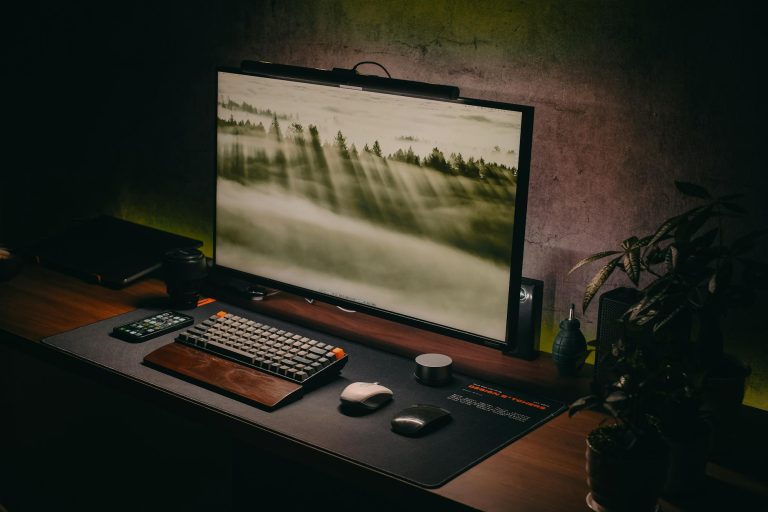
Monitor selection depends on what you do most. For software development, writing, and spreadsheet work, resolution and screen real estate matter more than color accuracy or refresh rate. For design and creative work, color accuracy (measured in Delta E values) and panel type become important.
Size and resolution: A 27-inch monitor at 4K (3840×2160) is the current sweet spot for productivity. Text is crisp enough to read for hours without eye strain, and the screen real estate allows comfortable side-by-side window arrangements. At 27 inches, 1440p is acceptable but 1080p causes visible pixelation at normal viewing distances.
Panel types: IPS panels offer the best color accuracy and viewing angles — ideal for anyone sharing their screen or working with visual content. VA panels provide deeper blacks and higher contrast but have slower response times. TN panels are cheapest but have poor viewing angles and color reproduction — avoid for productivity use.
Dual monitors vs. ultrawide: Both provide the screen real estate that drives productivity gains. Dual monitors offer more flexibility (different sizes, orientations, one vertical for code/documents) and are typically cheaper. Ultrawides (34-38 inches) provide a seamless experience without the bezel gap and are easier to manage with a single cable. For most people, a 27-inch primary with a 24-inch secondary is the best value configuration.
Browse 4K Monitors for Productivity
27-inch 4K IPS panels. Crisp text, wide viewing angles, USB-C connectivity.
Input Devices: Keyboards and Mice
You interact with your keyboard and mouse more than any other tool in your office — thousands of keystrokes and clicks per day. The right input devices reduce fatigue, increase speed, and prevent repetitive strain injuries.
Keyboards: Mechanical keyboards offer a significant typing experience advantage over membrane keyboards. The tactile feedback, consistent actuation force, and key travel reduce typing fatigue during long sessions. For office and programming use, switches like Cherry MX Brown (tactile, quiet) or MX Red (linear, smooth) are the most popular choices. Budget mechanical keyboards from Keychron, Royal Kludge, and EPOMAKER start at $40-$60.
Mice: If you use a mouse for more than 4 hours daily, an ergonomic design is worth considering. Vertical mice place your hand in a natural “handshake” position that reduces wrist pronation — a primary cause of mouse-related repetitive strain. The Logitech MX Vertical and Anker Vertical Mouse are well-regarded options at different price points.
Regardless of type, proper mouse positioning matters: the mouse should be at the same height as your keyboard, close enough that you do not have to reach for it, and your wrist should remain neutral (not bent up, down, or sideways) during use.
Cable Management That Lasts
Cable management is the most neglected aspect of home office setup, and the one most likely to create daily frustration. Tangled cables beneath your desk are not just ugly — they make it harder to add or remove devices, create tripping hazards, and collect dust that can cause allergies in enclosed rooms.
The simplest effective system uses three components: an under-desk cable tray (a $15-$25 mesh or J-channel that catches cables horizontally), velcro cable ties (not zip ties — velcro is reusable when you need to change things), and a power strip mounted to the underside or back of the desk using adhesive or screws.
Route all power cables to the strip, bundle data cables with velcro ties, and run everything through the cable tray. Label each cable where it enters the tray — this saves enormous time when troubleshooting or reconfiguring. Total cost: $30-$50. Time investment: 45 minutes once. The result is a clean desk surface with no visible cables, which reduces visual clutter and improves focus.
Lighting and Environment
Poor lighting causes eye strain faster than a bad monitor. The ideal home office lighting combines ambient room lighting (overhead, indirect) with task lighting (desk lamp) and minimizes glare on your screen.
Position your desk perpendicular to windows rather than facing them (direct light causes glare) or with your back to them (creates a dark screen with a bright background, straining your eyes). Side lighting is ideal — it provides natural light without interfering with your display.
For task lighting, a desk lamp with adjustable color temperature (2700K-6500K) allows you to match your artificial light to the time of day. Warmer light (3000-4000K) is comfortable for extended work. Cooler light (5000-6500K) promotes alertness but can cause eye fatigue during long sessions. A monitor light bar (like the BenQ ScreenBar) illuminates your desk without creating screen glare — arguably the most underrated home office accessory.
Audio: Calls, Focus, and Music
If you take video calls, a dedicated microphone or headset dramatically improves how you sound to colleagues and clients. Laptop microphones pick up room echo, fan noise, and keyboard clatter. A USB condenser microphone ($50-$100) or a quality headset ($80-$150) solves this immediately.
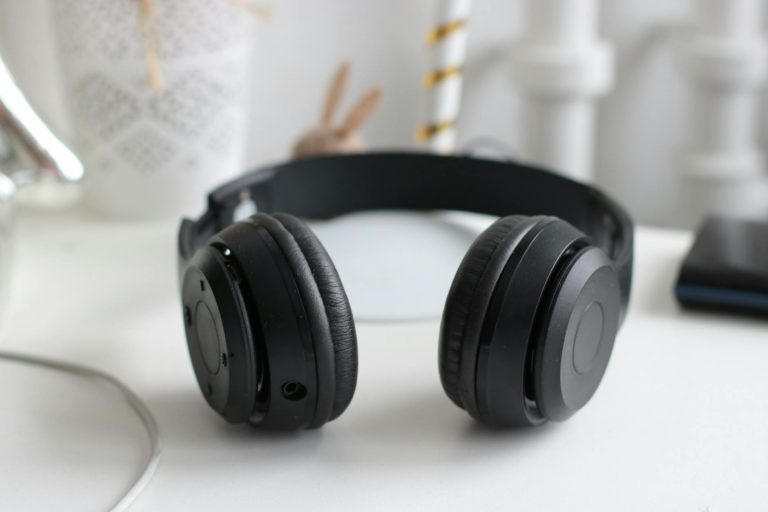
For focus work, noise-cancelling headphones are one of the highest-value productivity tools available. They reduce ambient noise by 20-35 dB, which is the difference between a noisy household and near-silence. Over-ear models from Sony (WH-1000XM5) and Bose (QuietComfort) lead the category. If you prefer not wearing headphones all day, a white noise machine or background noise app achieves a similar effect for many people.
Budget Builds: Three Tiers
Mid-Range ($800-$1,200): Quality ergonomic chair ($300-$400), 60″ sit-stand desk ($300-$400), 27″ 4K IPS monitor ($250-$350), mechanical keyboard ($50-$80), ergonomic mouse ($30-$50), cable management ($30), desk lamp ($25-$40). This is the sweet spot where every component is genuinely good.
Premium ($1,500-$2,500): Herman Miller or Steelcase chair ($800-$1,200), electric standing desk with memory presets ($400-$600), 27″ 4K monitor + secondary monitor ($400-$600), premium mechanical keyboard ($100-$150), noise-cancelling headphones ($250-$350), monitor light bar ($80-$100), full cable management ($50). Diminishing returns above this level for most people.
Actionable Takeaways
- Invest in your chair first. It has more impact on daily comfort and productivity than any other single purchase.
- Get a 27″ 4K monitor if you work with text. The reduction in eye strain pays for itself in the first month.
- Spend 45 minutes on cable management. It creates a cleaner workspace and reduces daily frustration disproportionately.
- Position your desk perpendicular to windows. Side lighting is ideal for both your eyes and your screen.
- Start with the mid-range tier. It provides 90% of the productivity benefit at 50% of the premium cost.
Ryan Nakamura is a software engineer with 12 years of experience at Fortune 500 tech companies. He specializes in productivity hardware, ergonomic setups, and developer tools.
Last reviewed: March 2026
Disclaimer: Product recommendations are based on independent research and hands-on testing. We are not sponsored by any manufacturer. Prices and availability may change.