Best Monitor for Productivity: Size, Resolution, and Panel Types Explained
Best Monitor for Productivity: Size, Resolution, and Panel Types Explained
Your monitor is the window through which you interact with all your work. A poor monitor causes eye strain, neck pain (from leaning forward to read small text), and reduced productivity from insufficient screen real estate. A good monitor eliminates these problems and makes every task slightly faster and more comfortable — effects that compound over thousands of hours of use.
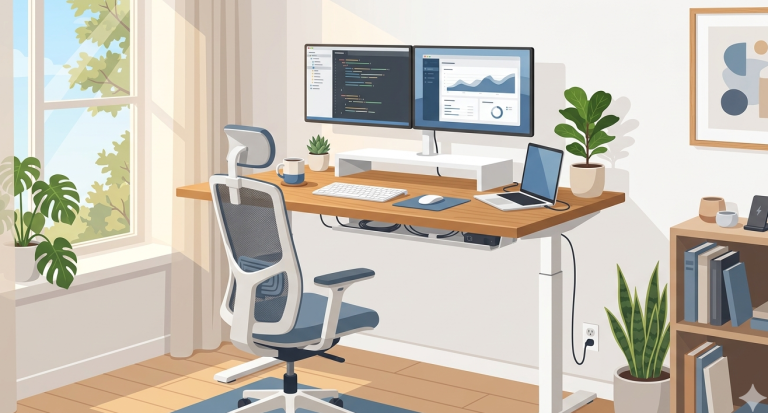
Monitor selection is covered in our complete home office setup guide. This article goes deeper into the technical details to help you make the right choice.
Resolution: What You Actually Need
Resolution determines text sharpness and usable screen space. At typical desk viewing distances (24-30 inches from your eyes), here is what each resolution provides at each monitor size:
24-inch at 1080p (92 PPI): Acceptable for general office work. Text is readable but not crisp. Fine for secondary monitors or budget builds. You will notice the difference if you have used higher-resolution displays.
27-inch at 1440p (109 PPI): Good balance of sharpness and value. Text is comfortable for extended reading. This is the minimum recommendation for a primary productivity monitor. Widely available at $200-$300.
27-inch at 4K (163 PPI): Excellent text rendering. Characters are smooth and crisp, similar to printed text. Reduces eye fatigue noticeably during 8+ hour sessions. The current sweet spot for productivity. Available at $250-$400.
32-inch at 4K (138 PPI): Larger workspace with good sharpness. Best for people who want more screen area without dual monitors. Requires slightly more desk depth. Not as crisp as 27-inch 4K but substantially better than 32-inch at 1440p.
Panel Types: IPS vs VA vs TN
IPS (In-Plane Switching): The best all-around choice for productivity. Wide viewing angles (178 degrees), accurate colors, and consistent brightness across the screen. Slightly higher price than VA or TN at the same size and resolution. The recommended choice for 90% of home office users.
VA (Vertical Alignment): Higher contrast ratios (3000:1 vs 1000:1 for IPS) produce deeper blacks, which can be easier on the eyes in dim rooms. Slower response times (not relevant for office work). Good for mixed productivity and media consumption. Colors are less accurate than IPS when viewed from angles.
TN (Twisted Nematic): Cheapest option with the worst viewing angles and color reproduction. Colors shift noticeably when viewed from even slight angles. Not recommended for productivity or any work where you care about visual quality. The only advantage is the lowest response time, which matters for competitive gaming — not office work.
Dual Monitors vs. Ultrawide
The productivity benefit of expanded screen real estate is well-documented. A study by Jon Peddie Research found that dual monitors increase productivity by an average of 20-30% for tasks involving reference materials, communication, and data comparison.
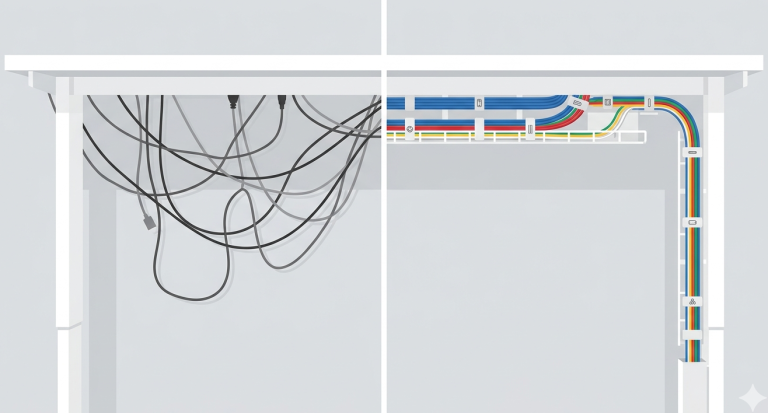
Dual monitors: More flexibility (different sizes, one vertical for documents/code), typically cheaper total cost, easier to replace one if it fails, can position independently for ergonomic optimization. Drawback: the bezel gap between screens is a minor annoyance, and cable management is more complex.
Ultrawide (34-38 inches): Seamless viewing experience, simpler cable management (one cable), looks cleaner on the desk, some models curve to wrap around your peripheral vision. Drawback: more expensive than two standard monitors at the same total screen area, harder to snap windows into consistent positions without software assistance.
For most people, the most cost-effective setup is a 27-inch 4K primary monitor plus a 24-inch 1080p or 1440p secondary. Total cost: $350-$500 for a substantial productivity upgrade.
Features That Matter (and Ones That Do Not)
Worth paying for: USB-C with power delivery (single cable to your laptop for video, data, and charging), height-adjustable stand (saves $30-$50 on a separate monitor arm), 60Hz refresh rate (smooth enough for all productivity work — you do not need 144Hz for spreadsheets).
Not worth paying for: HDR at this price range (budget HDR implementations are mediocre), refresh rates above 75Hz for productivity use, built-in speakers (they are universally poor quality), KVM switches (useful but usually cheaper as a standalone device).
For the complete home office setup including chair, desk, and peripherals, see our complete home office setup guide.
Ryan Nakamura is a software engineer with 12 years of experience at Fortune 500 tech companies. He specializes in productivity hardware, ergonomic setups, and developer tools.
Last reviewed: March 2026
Disclaimer: Product recommendations are based on independent research and hands-on testing. We are not sponsored by any manufacturer. Prices and availability may change.